ZSA Voyager
Orthonormal low profile splitted mechanical keyboardIt’s been now around a year since I’ve ditched the usual “Razer RGB Mechanical Keyboard” for something more oriented towards productivity and ergonomics. After some research, I ended up buying a ZSA Voyager. This article will cover my experience with this keyboard so far.
Why changing keyboard ?
After using either full size keyboards for years, I tried a 60% keyboard for a while. I’ve picked the Razer Huntsman Mini V3 pro. While I liked the small form factor, what really tickled me at first was the optomechanical switches. I really thought it would make a difference, but in the end, I really didn’t enjoyed typing on it. It was sure really fine for gaming, but as 80% of my computer usage is typing and coding, this guy just didn’t cut it. What it triggered in me though was the fact some keys were used for several functions as the keyboard cope with the lack of keys by using different layers. So I started looking at keyboards with layers.
This makes 3 prerequisites for my next keyboard, it had to be :
- Layered, so I could have more functions per key
- Mechanical switches, as I really like the typing feel of mechanical keyboards
- Oriented towards productivity/ergonomics
I ended up looking at several keyboards and brands, including :
- Ergodox EZ
- ZSA Moonlander
- Kinesis Advantage 2
- Keychron Q series
After more research, having an Orthonormal layout really appealed to me. It is known to be more ergonomic as it reduces finger travel distance. Originally the usual layout with staggered keys was designed to accommodate typewriters mechanical linkages, but with modern keyboards, this is not needed anymore. So I focused on keyboards with orthonormal layouts.
ZSA ?
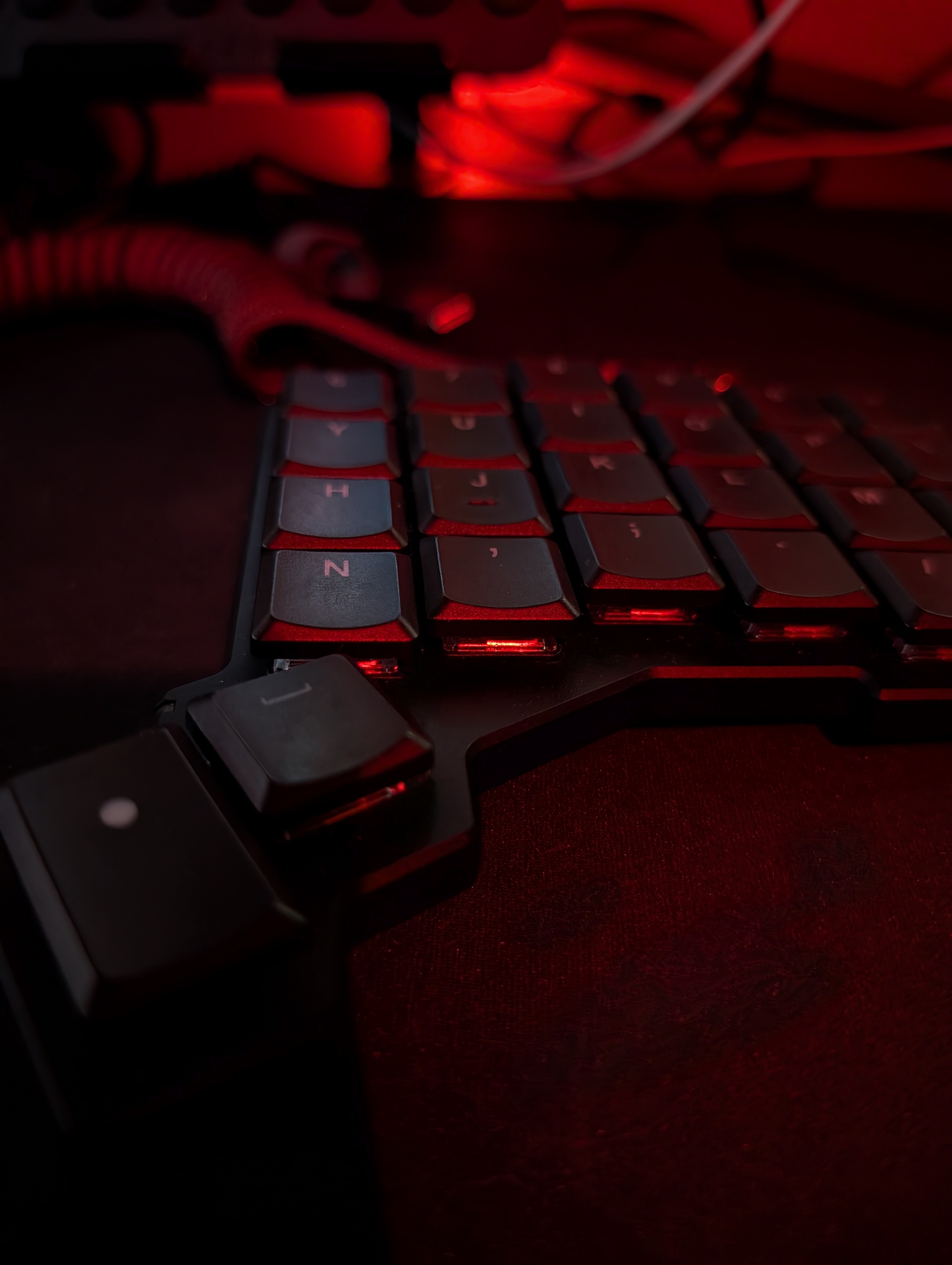
ZSA Voyager
ZSA is a small Canadian company specialized in ergonomic mechanical keyboards. Their products are known for their high quality, customizability and unique designs. I’ve picked the Voyager as it is their most compact keyboard with an orthonormal layout. It is a splitted keyboard, meaning it is composed of two separate halves that can be positioned independently. This allows for a more natural hand position and reduces strain on the wrists. The keyboard is delivered with a carrying case, USBC cables, jack to jack audio cable of different lengths, some spare keys and a keycap puller.
Some accommodations
At first you’ll have to change some stuff around. Indeed, this keyboard has to be treated as a new way of typing as it doesn’t have as much keys as an usual keyboard. You’ll have to get used to using layers for some keys you typically just reach with a wrist twist or a pinky stretch (hint both are bad for you).
I’m usually typing on an AZERTY French Layout so making accents like é, è, à, ù,… which usually are mapped either to altgr + number keys or directly some num keys aren’t available here ! You’ll have to either work on your layout or use layers. For me, I’ve remapped Q and W to A and Z respectively, moved the keys around and used the US International layout which allows me to make accents using dead keys. If you don’t know what dead keys are, this basically means that you’ll press the accent key first followed by the letter you need to accentuate. For instance, to type é, you’ll press ’ then e. You get used to it pretty fast as it allows you to make accents on any letters, even uppercase ones which aren’t as easy to deal with on classical AZERTY layouts. Having number keys accessible without having to hit shift first is a big plus over French AZERTY.
Softwares
You can customize the keyboard using ZSA flashing utility and their online layout configurator. Both are pretty easy to use.
You can make different layers, combo keys, macros,… then just flash the keyboard by starting the flashing application, putting the keyboard in flashing mode by pressing the button on top of it and selecting the layout file you’ve exported from the configurator.
Layers and combos
As said I’m using QWERTY US International with some remapped keys. I have 4 layers :
- Base layer : QWERTY US International with remapped A and Z keys
- Enter layer : Activated by holding the Enter key, this layer gives access Fx keys (on number row), parenthesis, brackets, braces, numpad on the right hand, and other special characters.
- Navigation layer : Activated by holding the Space key, this layer gives access to arrow keys, Home, End, PgUp, PgDn, NextTab, PrevTab on the right hand and Volume and Media controls on the left hand.
- Functions layer : Activated by holding the - key (top right of right hand), this layers is used to make combos and macros. For instance VI combos like “escape :w enter” or “escape :q enter” are mapped here., alt+F4, and other shortcuts I customized here.
How good it is ?
Well, first 2 weeks were a bit rough. I basically had to relearn how to type and every special character were a pain to remember. I had to keep the layout website opened to check where keys were located. But really once you get it, it’s a pleasure to type on it. Even if the goal isn’t to type faster, You end up making less mistakes so your effective typing speed increases a lot. You can type on it for hours without any pain or discomfort. The split layout is also a big plus when you game on it ! As you can just move one part of the keyboard over to save more space for your mouse hand.
When I have to go back to my laptop keyboard, I end up typing really slow and hating all the twists I have to make to hit some accents. The keyboard by itself is really well built. Keys are clicky yet silent enough to be used in an office environment. The RGB lighting is a nice touch and it can be disabled quickly.
What’s perfect is when you couple it with hyprland, which is highly customizable and allows you to set shortcuts for apps by design, which you can map to combos on layers of your keyboard. You can also customize your other OSes to use the same keyboard for the same kind of applications and you keep some momentum when you switch between machines. For instance, Top right + Top Left key = Ctrl+Escape which opens the task manager on Windows, it opens mission center on my Linux desktop.
I’ve bought custom USB C to C and 4 poles jack curled cables to connect both halves of the keyboard and it really helps keeping the desk tidy and gives it a nice kick.
This article being over, I hit my -+W combo key to save it aaaand it’s online !